
e·conomic Sync & Quote for SuperOffice
Make SuperOffice and e·conomic work together
Automatic synchronisation of customers, financial data and quotes between SuperOffice and e·conomic.
Plug ´n Play CRM Connector for:

Better customer insight. Simpler workflows. Higher data quality.
CRM shows Sales and Customer Service the relationship with the customer. e·conomic shows what is actually happening financially.
When the two systems are connected, employees have a stronger basis for understanding customers and acting on the right opportunities.
At the same time, customer data stays synchronised, so you do not have to create and maintain the same information in several places.
01
Bring financial data into the customer view
Make relevant data from e·conomic available in your CRM, giving Sales and Customer Service a better basis when working with customers.
02
Make the systems work together
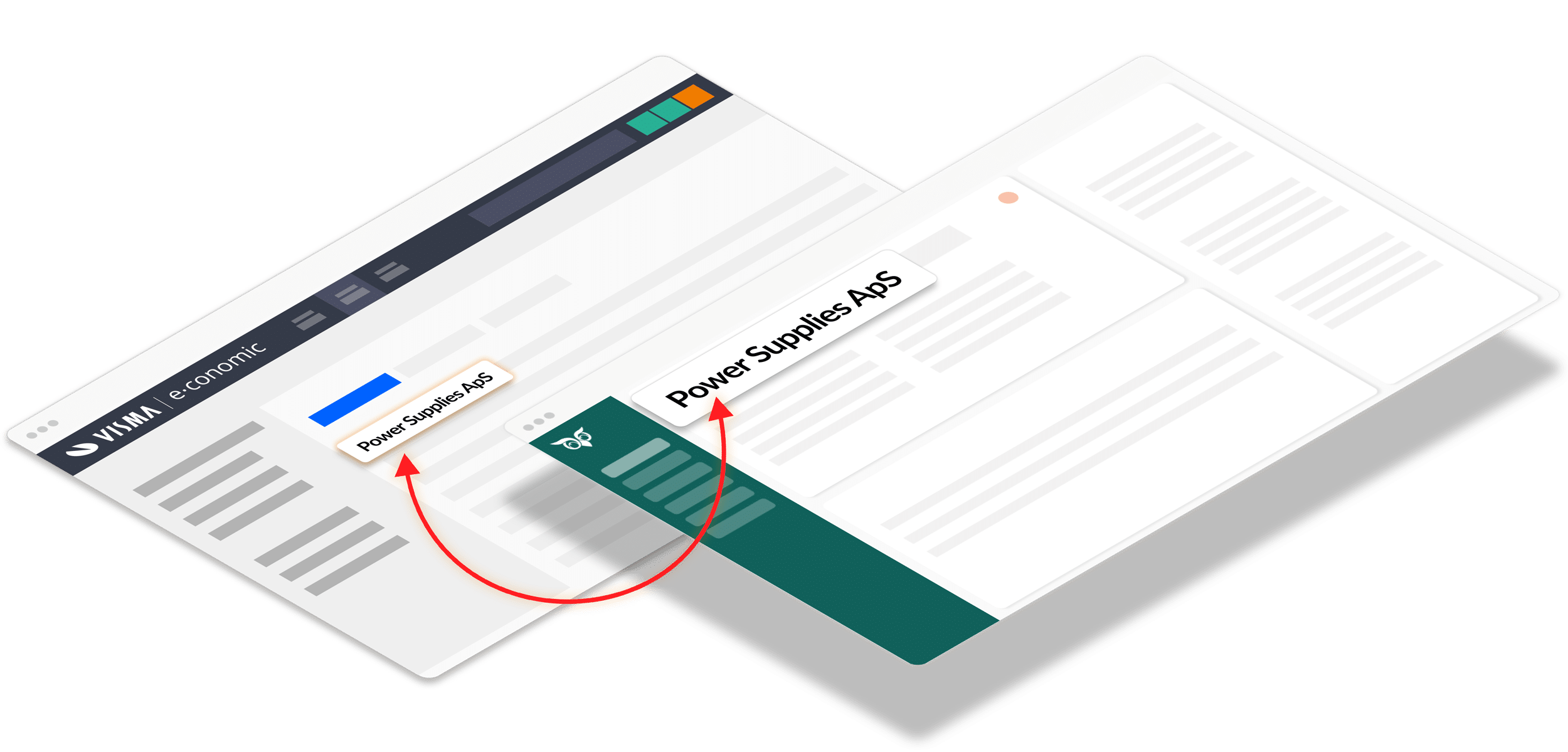
Synchronise customers and customer data between CRM and e·conomic, so information does not have to be created, corrected and maintained manually in both systems.
03
Keep customer data organised
Let the Connector handle the exchange of customer data, reducing duplicates, differences between systems and errors from manual entry.
04
OPTIONAL: From quote to invoicing
Create and work with quotes as part of the sales process in SuperOffice, then transfer the accepted quote to e·conomic when it is ready for invoicing.

How e·conomic Sync & Quote works
1
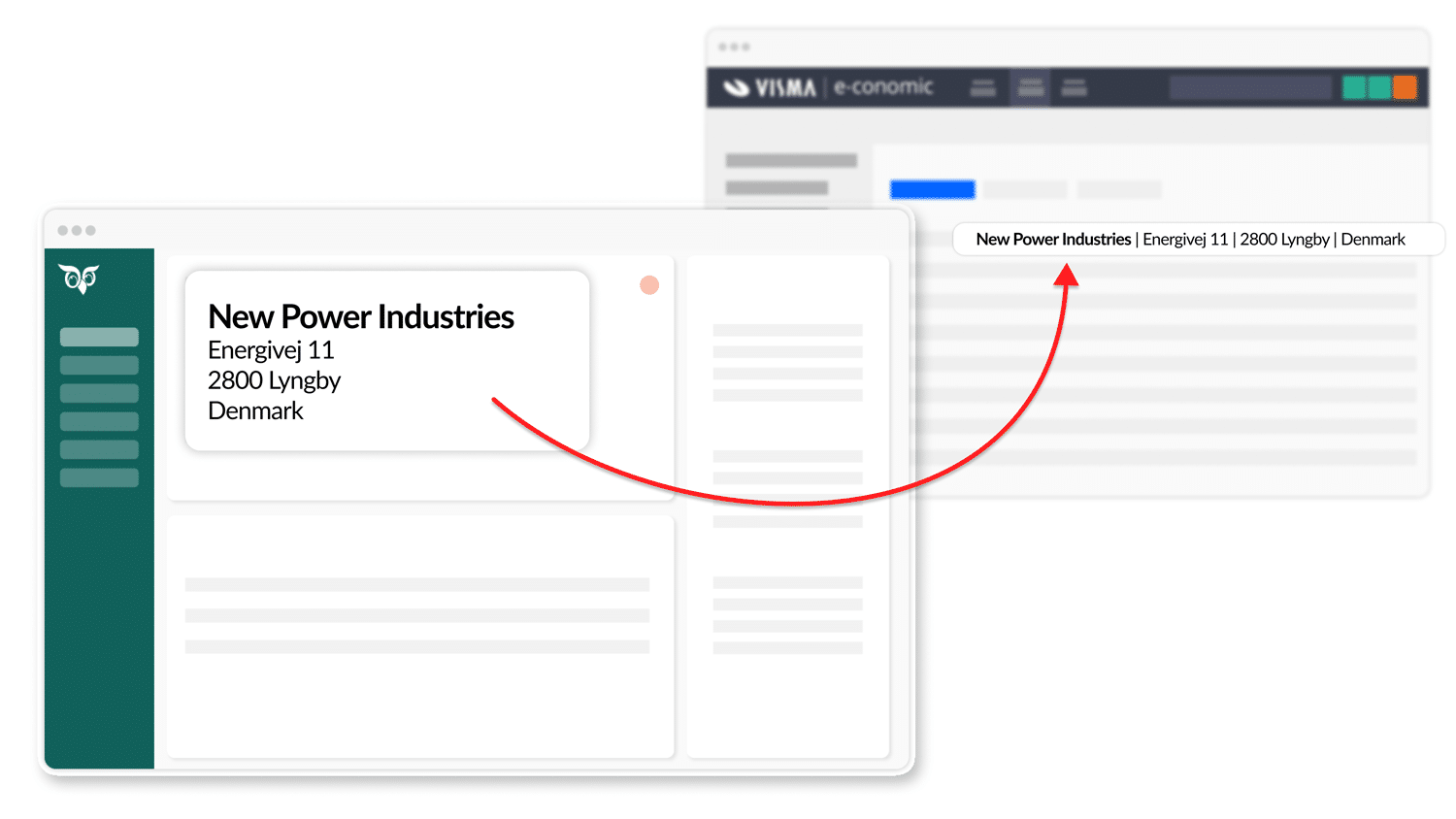
When an opportunity becomes a customer in SuperOffice, simply click the “ERP” button to start the transfer to e·conomic
2
The integration first checks for duplicates to ensure that the customer does not already exist in e·conomic.
3
Before the transfer is complete, a customer number is assigned to the new customer—either automatically or manually
1
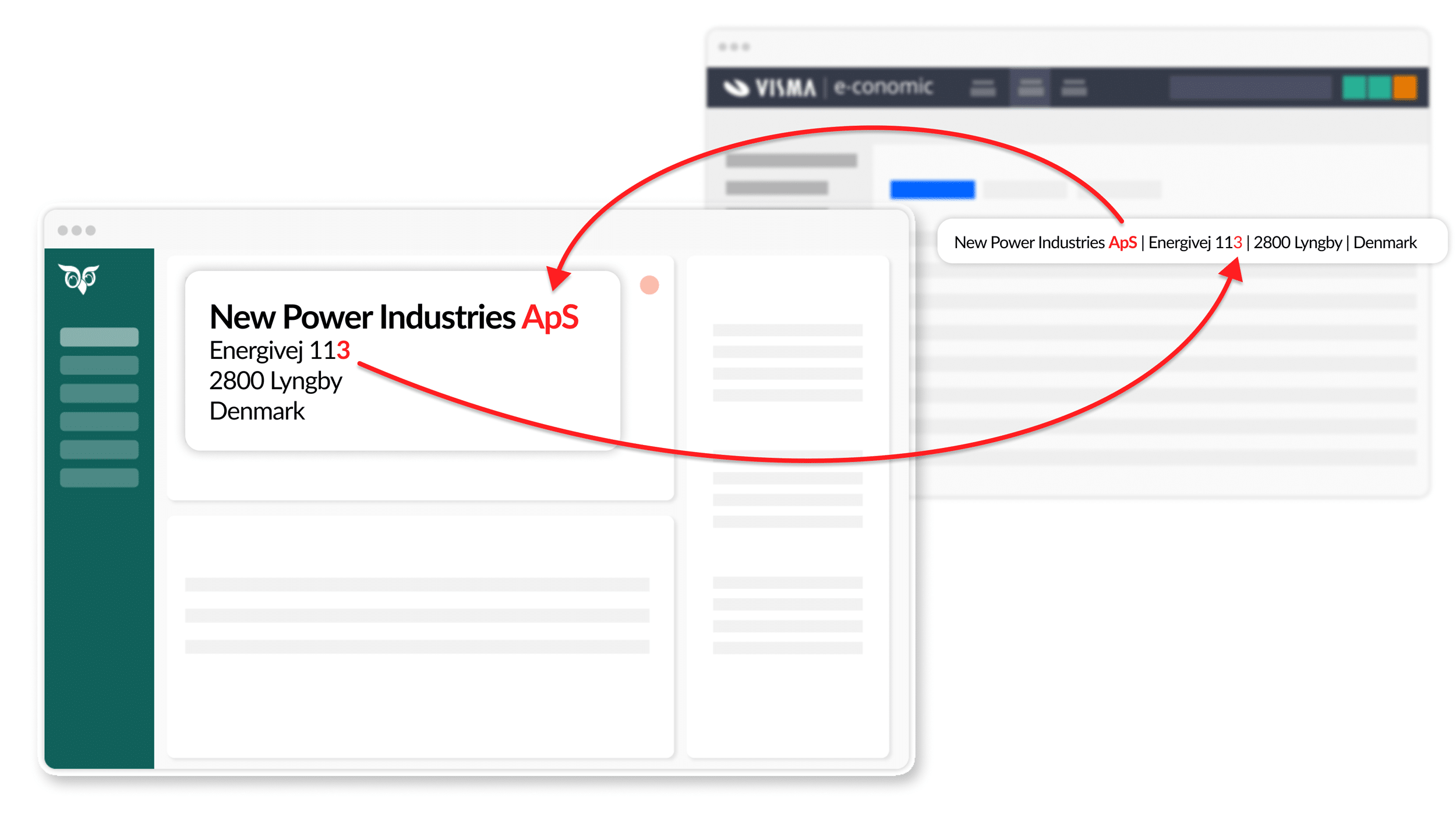
Changes to the company in either SuperOffice or e·conomic can be synchronised automatically
2
Which fields should be updated, and in which direction, can easily be adjusted in the integration settings
3
You can disable automatic updates completely if you do not want them.
1
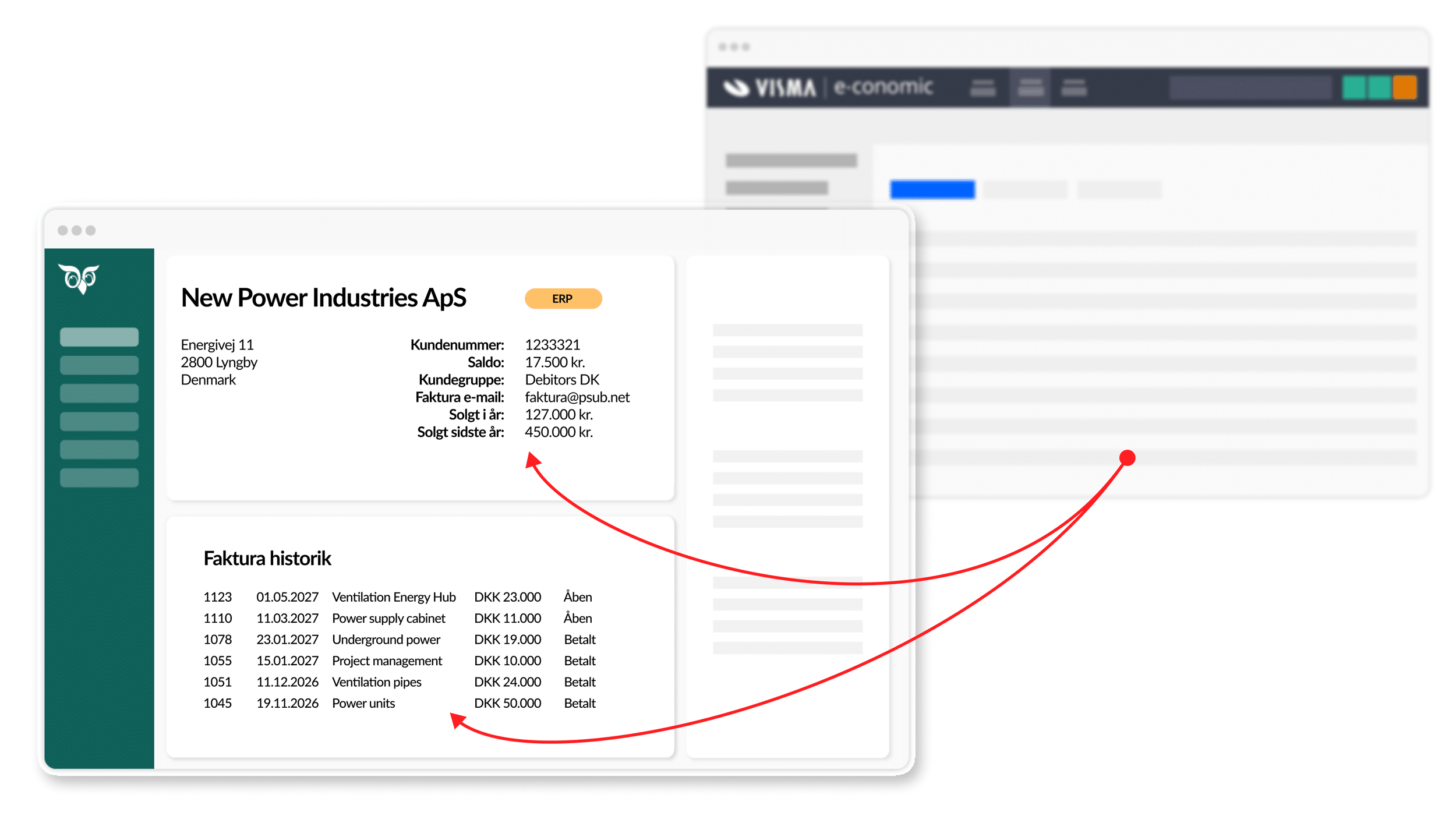
Fields such as Balance, Amount due, Sales this year, Sales last year and more can be displayed in the ERP tab for the customer in SuperOffice
2
Invoice and order history from e·conomic is displayed as a list for each customer in SuperOffice. You can even see whether they have paid.
3
Selected fields (Sales year to date and Sales last year) can be placed on the More page in SuperOffice for further processing
1
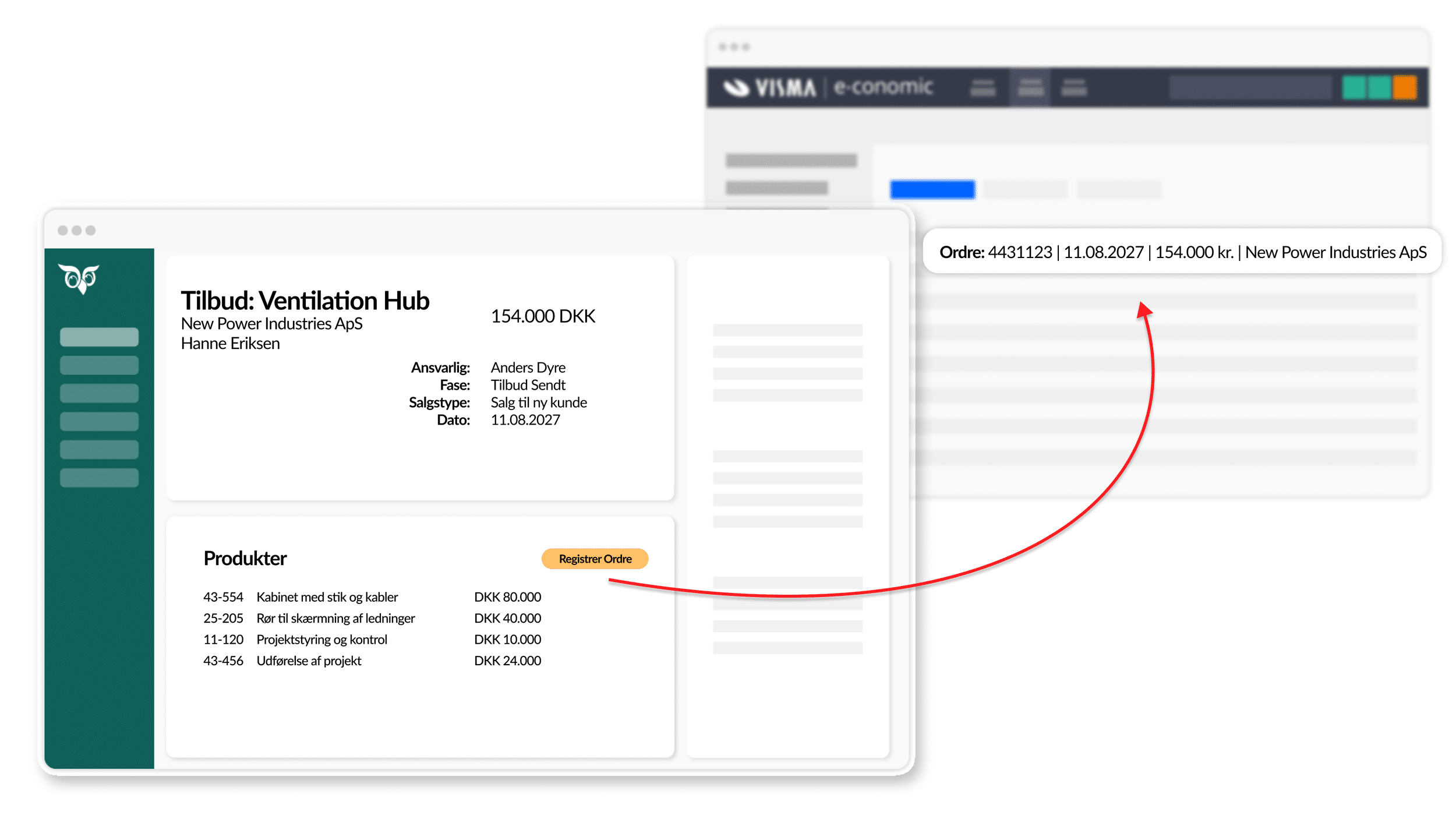
Create quotes in SuperOffice with the correct product names and prices, retrieved directly from e·conomic
2
Once the customer approves the quote, you can easily convert it into an order in e·conomic—click “Register Order”
3
The order can now be converted into an invoice and sent to the customer.

Simple ERP integration. Without compromise.
e·conomic Sync & Quote is a proven standard product with the features you need to connect CRM and e·conomic and create real value for Sales, Customer Service and Finance.
Key features
e·conomic Sync
e·conomic Quote
What you get with e·conomic Sync & Quote
Build a stronger customer view
Bring together SuperOffice data and relevant financial data from e·conomic around the customer, giving Sales and Customer Service a better basis for dialogue, follow-up and prioritisation.
Get more from your SuperOffice
Make financial customer insight available where Sales and Customer Service already work, making SuperOffice a stronger tool for everyday customer work.
Less administration. Higher data quality.
Avoid creating and maintaining the same customer data in several places, while reducing the risk of duplicates, errors and conflicting information in the two systems.
From sales to invoicing
With Quote, quotes can become part of the sales process in SuperOffice and be transferred to e·conomic as an order or invoice when the customer accepts.

“I highly recommend Siteshop’s e·conomic Sync and Quote from Siteshop. The integration is extremely valuable to us, and the service is top-notch.”
“We now save an enormous amount of time internally, and with relevant, up-to-date customer and credit data in our CRM, everyday work is simply easier for all of us.”
Rune Bjørnstad
CEO, Polyflor AS
See e·conomic Sync & Quote in action
Book a short presentation and see how e·conomic and SuperOffice work together.
Pricing
e·conomic
Sync
DKK 70
/ user / month
Minimum purchase of
3 users
Standard installation = DKK 6,600
Min. DKK 210 / month
billed annually
e·conomic
Quote
DKK 70
/ user / month
Minimum purchase of
3 users
Standard installation = DKK 6,600
Min. DKK 210 / month
billed annually
What does the annual price cover?
- Operation of e·conomic Sync & Quote
- Proactive monitoring of the integration
- Email support
- Ongoing compatibility with new versions of SuperOffice and e·conomic
- New features
The fixed annual price reduces the need for new consulting projects as SuperOffice and the API evolve.
What is included in the installation?
Standard installation includes at a minimum:
- Installation of e·conomic Sync or Quote
- Review of setup, field mapping, etc.
- Integration testing
- User onboarding
Get started
Installation and registration of e·conomic Sync & Quote starts in the SuperOffice App Store—select below. Installation must be carried out by your CRM administrator and an e·conomic user with admin rights.

Before starting the installation, review the documentation and see the helpful tips in the list on the right. If you are unsure about the installation or configuration, email support@siteshop.dk
Helpful installation tips
Ready to connect SuperOffice and e·conomic?
Make e·conomic and your SuperOffice work together automatically and without manual processes.