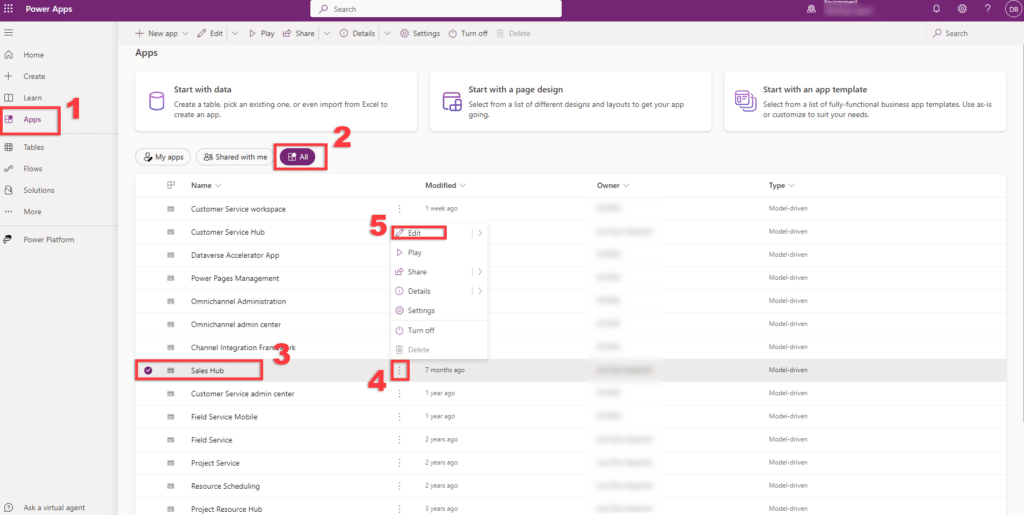
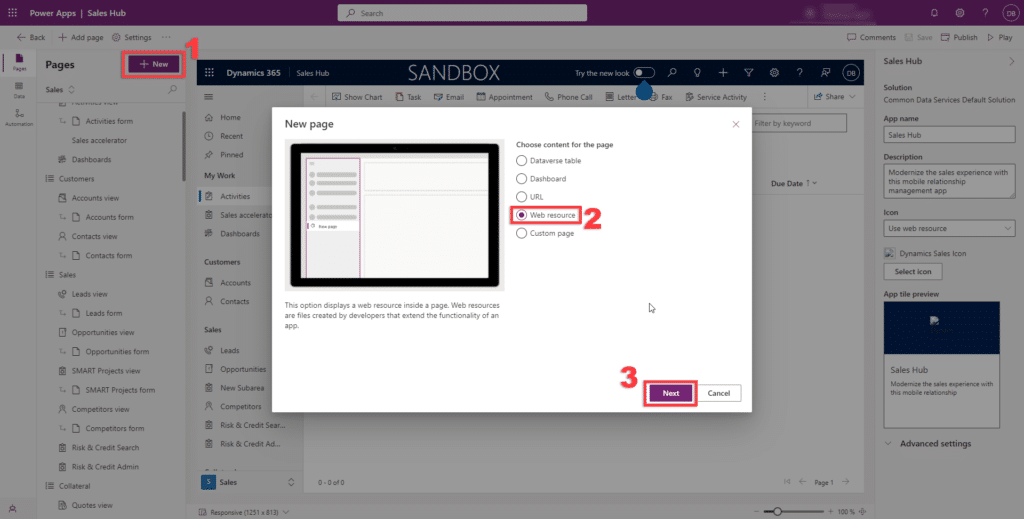
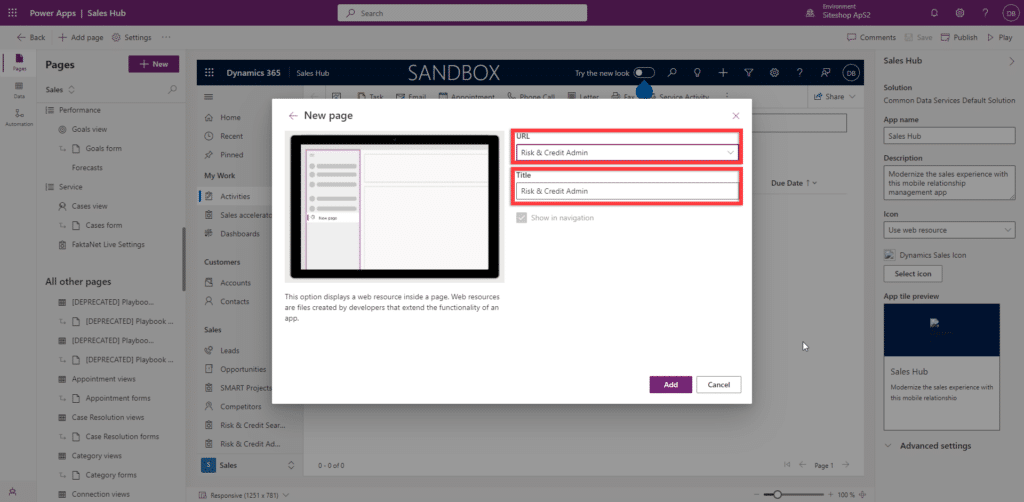
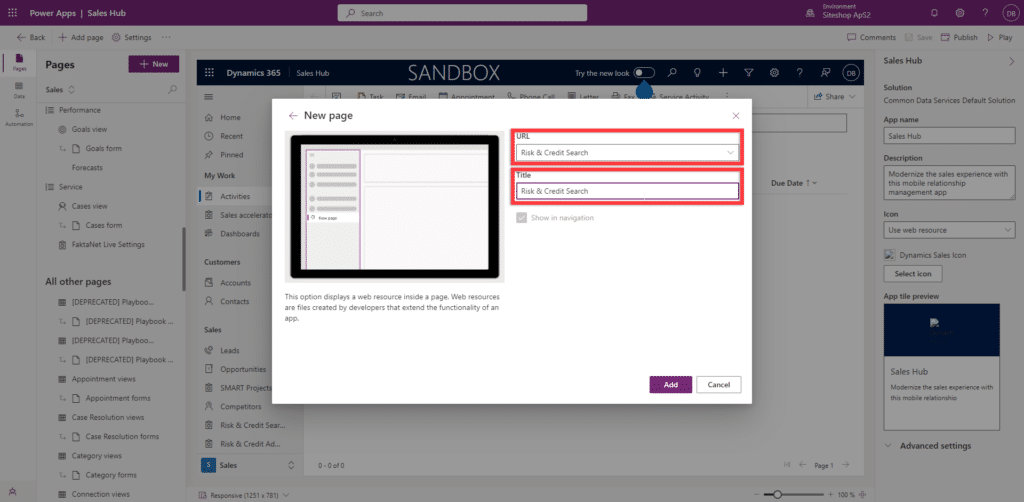
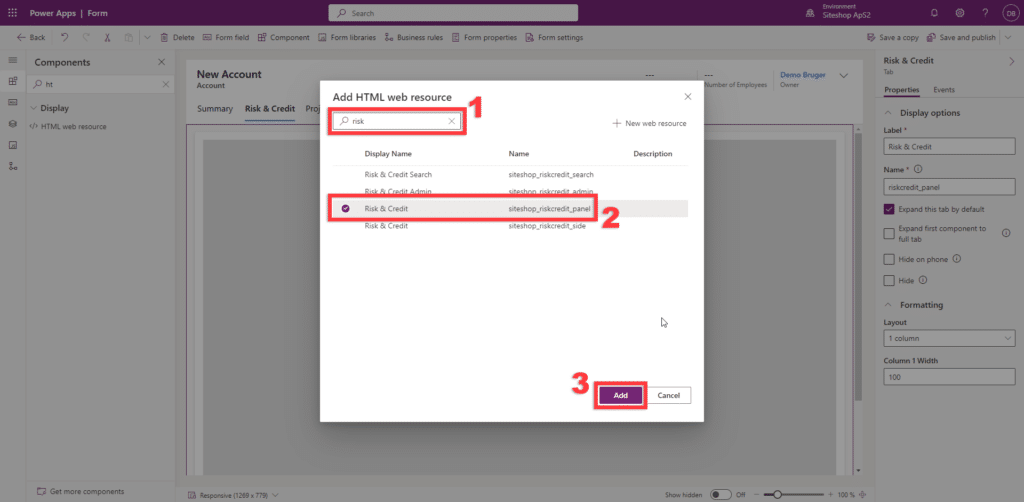
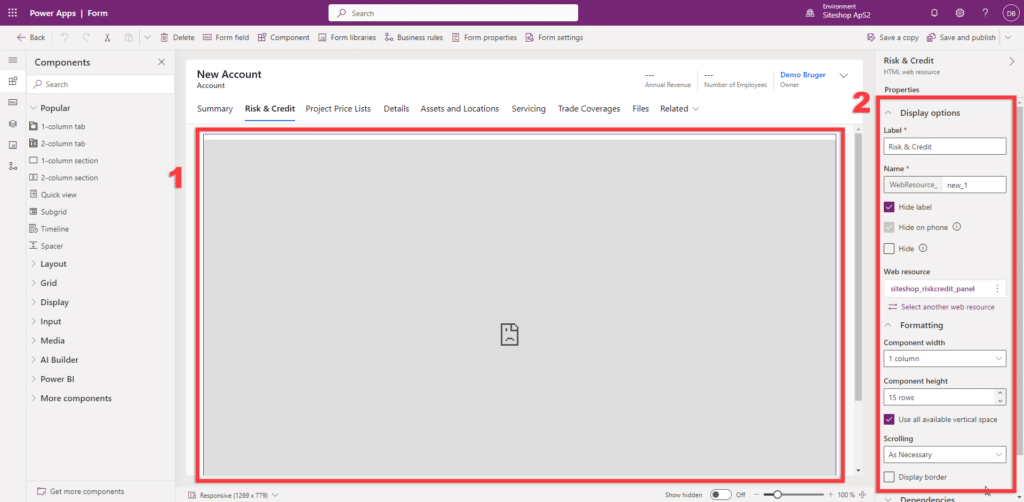
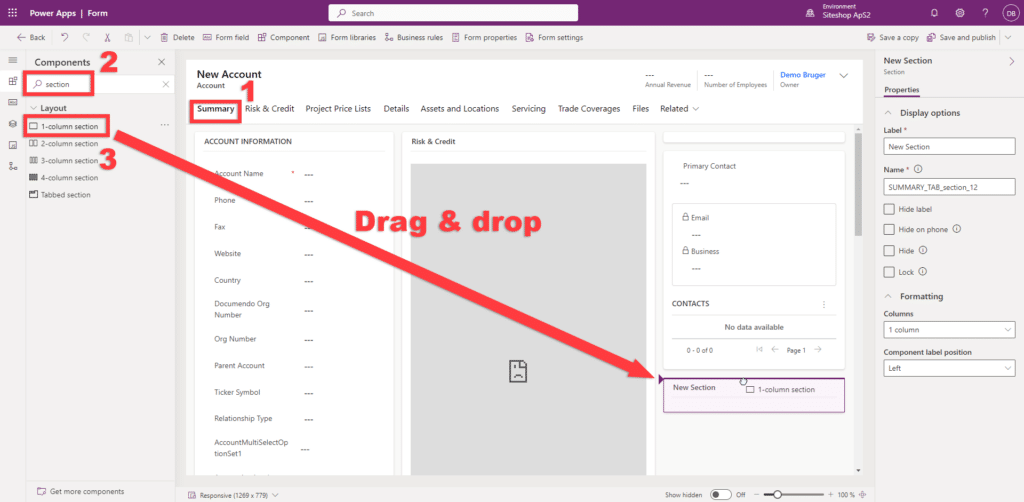
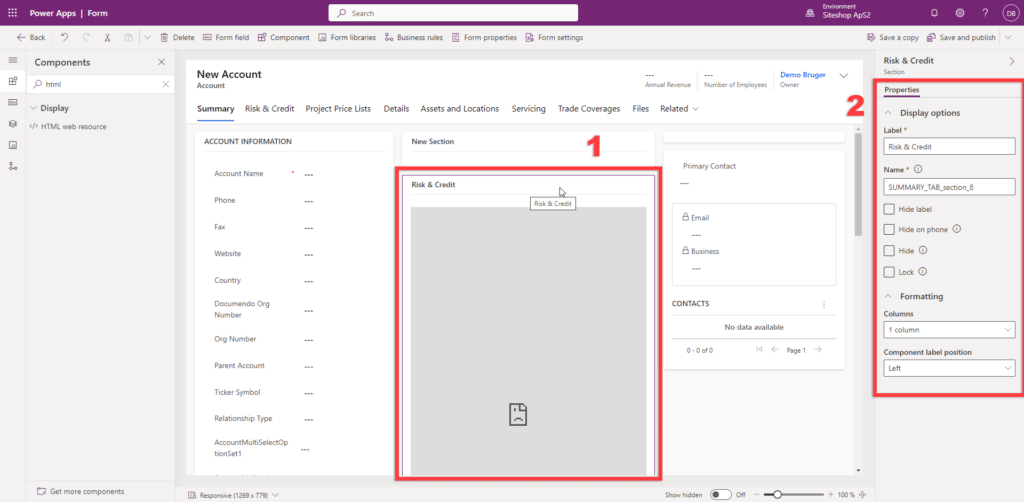
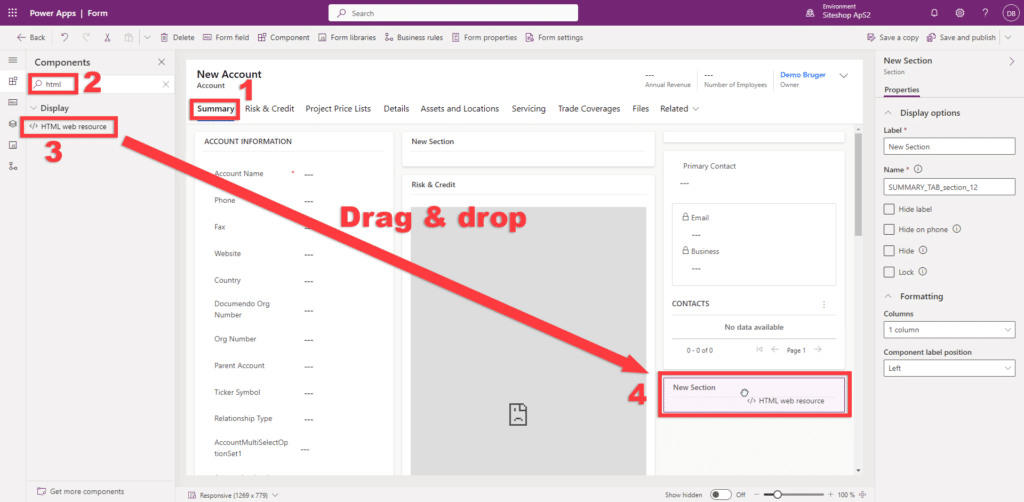
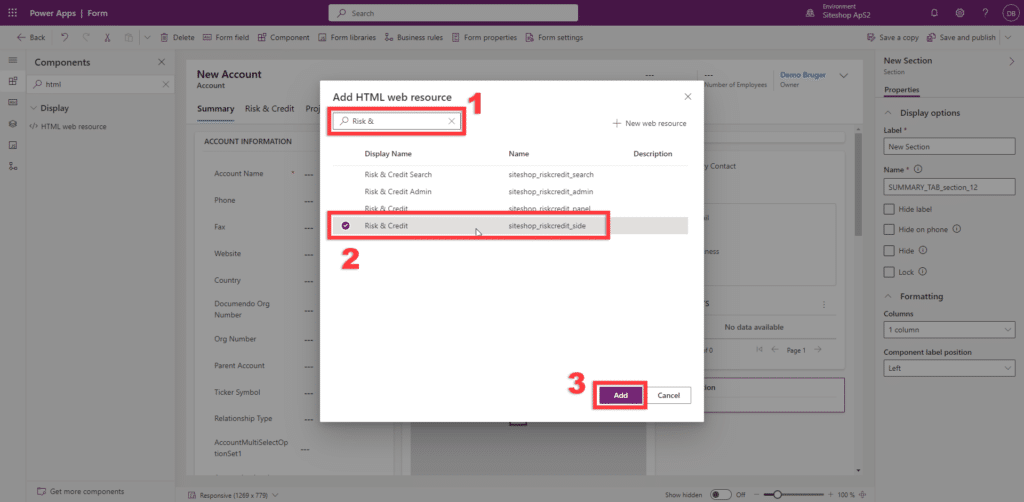
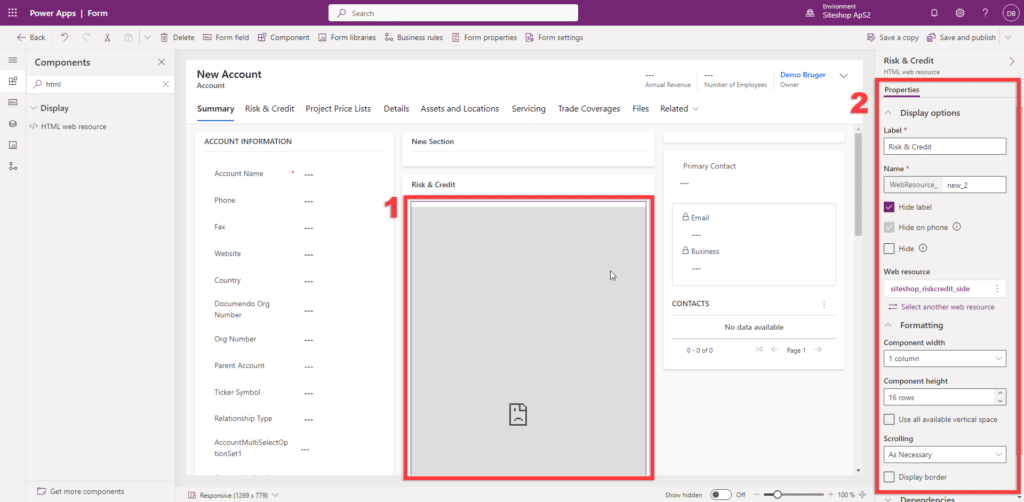
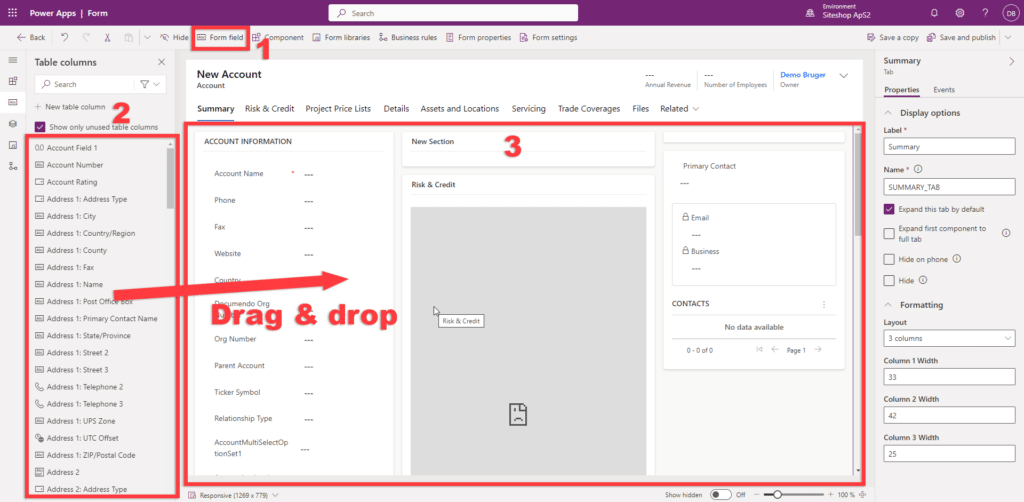
Introduction Siteshop CRM Connectors are provided by Siteshop ApS which is a Microsoft ISV Partner. You can order and pay for a license to a Siteshop CRM Connector the same way that you order and pay your Microsoft Dynamics 365 licenses. If you have a Microsoft Customer Agreement (MCA) or an Enterprise Agreement (EA), purchases…
Last updated on 16-10-2023 All the fields ending in “sotrans”, are translated lists, that will appear in the local language of the SuperOffice client. Installing fields To install more fields in SuperOffice, go to “Settings and Maintainance”, select “Fields” in the left hand menu, and add the fields you want with the appropriate ProgId. For…
Last updated: 05-07-2023 Creating a Dynamics 365 App To grant the app access to your Dynamics API, an app needs to be created in the Azure Active directory. Go to https://portal.azure.com -> “Azure active directory”. From here, navigate to “App registration” and click “New registration”. Enter a fitting name. This could be specific to the…
Learn how to use Integration Cloud to set up secure and automatic integrations with SuperOffice CRM. Table of content Introduction Integration Cloud is a standard integration-app developed by Siteshop ApS that lets you push data to or pull data from SuperOffice CRM, including both the Online and On-premise versions. Integration Cloud offers you a simple…
Last updated on 30-04-2026 To connect to your Dynamics, you must send the following information to Siteshop: Creating an Azure App To grant the app access to your Dynamics API, an app needs to be created in the Azure Active directory. Go to https://portal.azure.com -> “Microsoft Entra ID”. From here, navigate to “App registration” and…
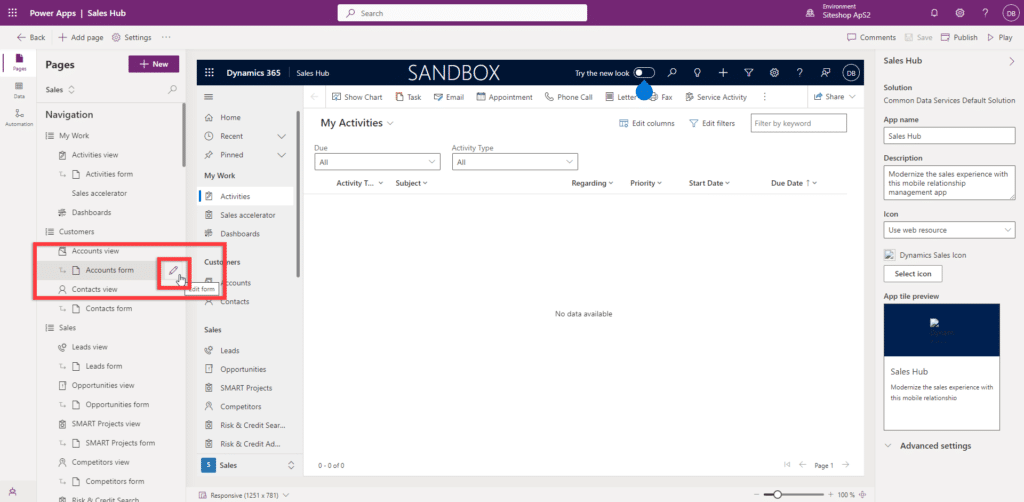
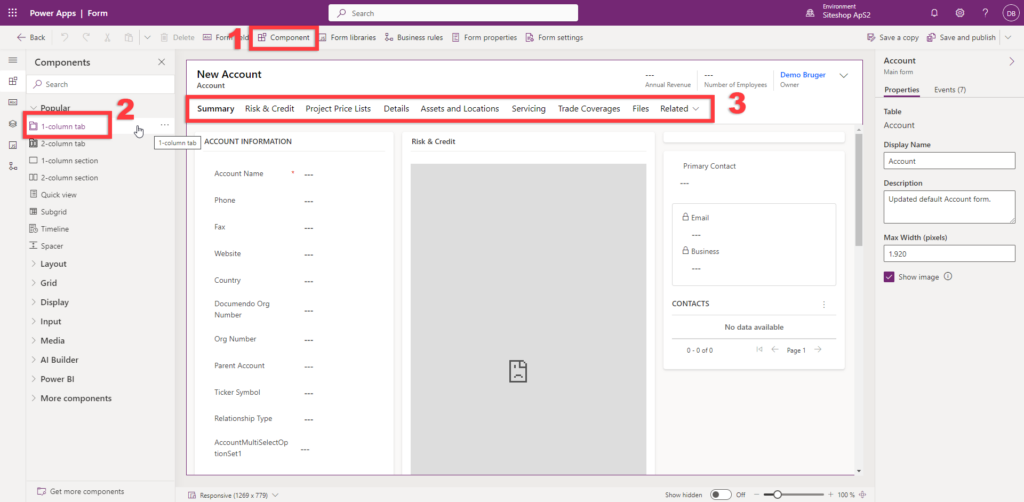
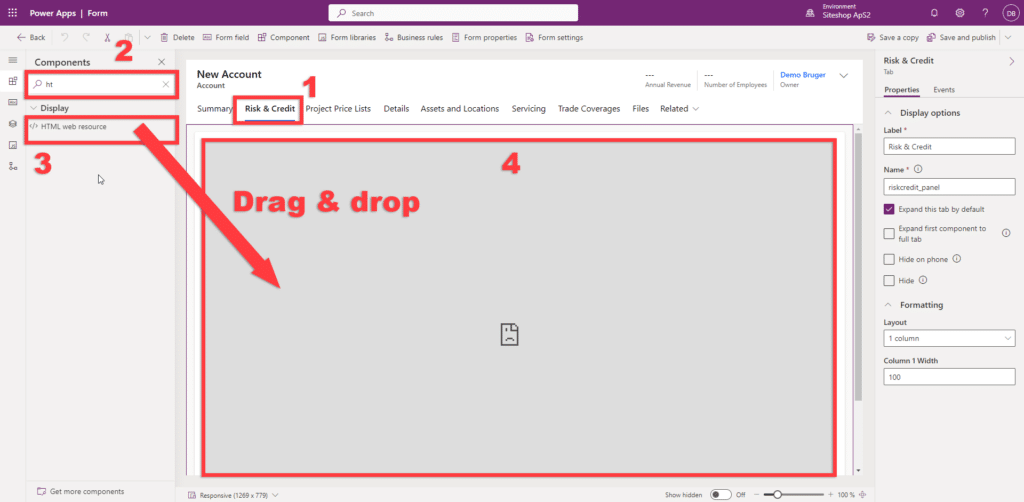
Preparation Dynamics 365 Solution A solution must be installed in your Dynamics 365 environment.Contact Siteshop at info@siteshop.dk or via https://siteshop.eu/contact to get the solution.Or install it from the App Source. Azure Entra ID (Active Directory) access Make sure you have the following information ready: A guide to finding this information can be found here. Application…